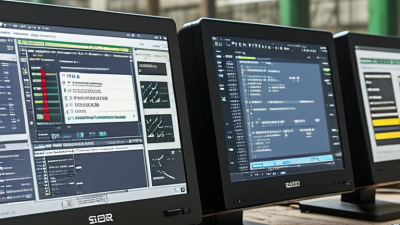
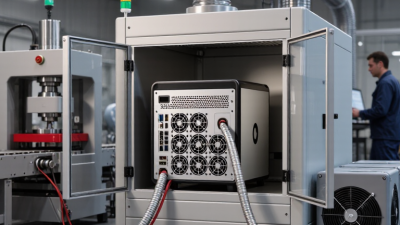
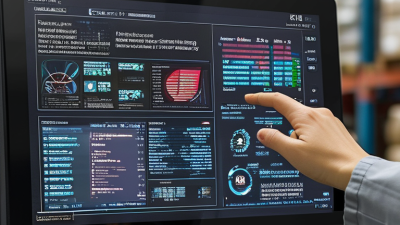
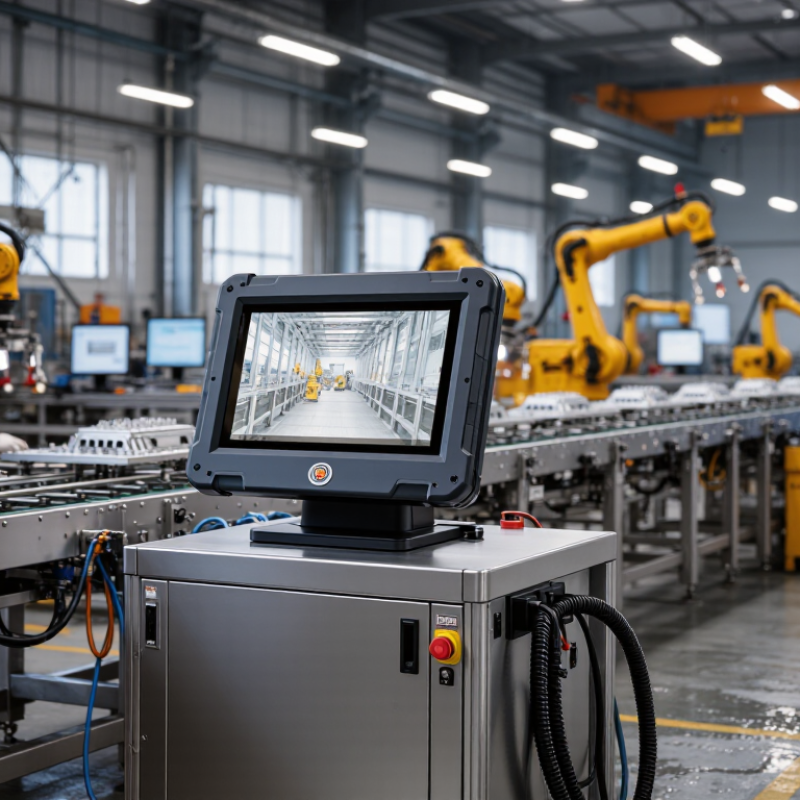
Factories these days really run on connected machines, automated lines, and interfaces that are actually easy to read. A touch panel can end up anywhere—beside a conveyor that won't stop shaking, under lights that never seem to dim, or right in the path of regular washdowns. And the little design choices? They can make or break someone's whole shift.
So the International Federation of Robotics just released its World Robotics 2024 report—and the numbers are pretty wild. In 2023 alone, there were 541,302 industrial robots installed worldwide, and something like 4.28 million robots are now operating across the globe. Now, these stats don't directly tell us how much demand there is for touch-computer interfaces, but they do give you a sense of just how huge industrial automation has become. And when you've got that many machines working in real-world conditions, dependable human-machine interfaces really matter. Heat? Yeah, that matters too. So does dust, vibration, and, oh right, gloves.
Picking an Industrial Touch PC isn't just about comparing screen sizes and processor speeds, honestly. You've got to think about where it'll actually live—the environment, the software, how much space you have to mount it, and how long you expect it to last. That super-bright display might look great in a showroom, but put it next to a sunlit loading bay and suddenly it's a pain to read. I mean, a sealed enclosure can work in a wet area, but you still have to pay close attention to the connectors and how you’re going to clean it. Honestly, those little details are way too easy to overlook.
Alright, so this guide is basically your go-to for seven practical tips—covering performance, display quality, durability, connectivity, and whether it’ll be supported down the road. But here’s the thing: it’s not just about specs. You really need to test them under real conditions instead of trusting the product sheet. Honestly, there’s no single 'best' unit out there. Even a great spec can let you down if you mess up the installation details. A quick site trial? That can catch problems no checklist will ever show you.
Define the Workload and Set CPU, Memory, and 24/7 Duty-Cycle Requirements
Before selecting a processor, write down what the touch PC will actually do.
A panel displaying machine status needs less computing power than one running vision inspection, database logging, and several control interfaces. Note the software, number of simultaneous tasks, screen resolution, and expected response time. Then choose a CPU with practical headroom, not simply the highest benchmark score. Heavy loads can make a fanless enclosure run hot.
Memory needs depend on the same workload.
Check the operating system and application requirements, then leave room for logs, updates, and background services. For example, a production-line dashboard may feel responsive during a brief test but lag when trend data and alarms accumulate. Test the real software. It is easy to overlook.
Duty cycle matters just as much.
If the PC runs continuously, confirm its rated operating temperature and suitability for sustained use.
Uptime Institute’s 2023 Annual Outage Analysis found that 54% of surveyed organizations’ most recent significant outages cost over $100,000. That figure covers data-center outages, not industrial PCs, but it shows why downtime assumptions deserve scrutiny.
NIST’s 2023 SP 800-82 Rev. 3 also stresses that operational technology must meet reliability and performance needs. Specify continuous operation explicitly, and validate the system under the site’s heat, vibration, and workload. A spec sheet alone is not proof.
Select Display Size and Resolution, Then Set a Brightness Target in cd/m²
Choose screen size from the operator’s normal viewing distance, not the available panel opening alone. A 10-inch display may suit a machine viewed at arm’s length; a larger screen helps when alarms and process diagrams appear together. Match resolution to the interface: tiny text on a high-resolution panel can slow gloved operators. VESA’s DisplayHDR Compliance Test Specification sets a 400 cd/m² peak-luminance threshold for its DisplayHDR 400 tier. That is a useful reference point, not proof of sunlight readability; peak brightness can differ from sustained, full-screen output.
Set a brightness target after measuring the actual installation. CIE daylight guidance places outdoor illuminance near 100,000 lux in strong sun, while a factory window can create glare well below that level. Lux describes light falling on a surface; cd/m² describes screen luminance, so the figures are not directly interchangeable. As a practical starting point, consider 400–600 cd/m² for typical indoor floors and 800–1,000 cd/m² for bright, window-facing areas. Check at noon. Then test the screen at its installed angle, with the protective cover fitted and key interface colors visible. A dimmer panel may still work with optical bonding or a matte surface, but I would not assume those features solve every reflection. Verify sustained brightness in the supplier’s test data, not just a peak figure.
7 Tips for Choosing an Industrial Touch PC: Select Display Size and Resolution, Then Set a Brightness Target
Typical display brightness planning targets by viewing environment
These values are practical starting points, not universal requirements. Choose a display size and resolution that suit the viewing distance and interface, then verify readability under actual ambient lighting. Cover glass, reflections, and viewing angle can affect perceived brightness.
Choose Resistive or PCAP Touch for Gloves, Moisture, and Multi-Touch Use
Choosing between resistive and PCAP touch depends on the hands, tools, and conditions around the screen. Resistive panels respond to pressure, so they can work with many gloves and a simple stylus. They are often a practical fit for operators wearing thick work gloves. The trade-off is a less glass-like feel and limited multi-touch capability. Glove thickness and screen calibration still matter.
PCAP touch offers a smooth surface and supports gestures such as pinch-to-zoom. But water droplets or damp gloves may cause missed touches or unintended input. Gloves change the test. Before selecting an Industrial Touch Panel Pc, try the actual gloves on a sample screen. Tap small on-screen buttons, drag a slider, and repeat with wet fingertips if moisture is likely. Check whether the display ignores a resting palm while registering deliberate taps. A specification sheet cannot reveal every nuisance. I have seen teams favor multi-touch, then discover that their operators rarely use gestures. That is worth reconsidering. Choose the technology that stays predictable during real tasks, not merely the one with the longer feature list.
Compare IP65 and IP67 Ratings Under IEC 60529 for Dust and Water
When choosing an Industrial Touch Computer, compare the actual cleaning and exposure conditions with its IEC 60529 rating. IP65 means dust-tight protection and resistance to water jets. IP67 also indicates dust-tight protection, but its water test is temporary immersion: commonly specified as 1 metre for 30 minutes. These are different tests, not a simple ladder.
Check the details. IEC 60529 defines the IP code, but an IP67 rating alone does not confirm resistance to water jets. A unit facing spray-down cleaning may need a separate IP65 claim, or documented testing for both conditions. That distinction is easy to miss. On the factory floor, water can enter through cable glands, connectors, or a damaged seal, even when the enclosure rating looks adequate. Ratings also do not establish resistance to detergents, hot-water pressure washing, or repeated temperature changes. Ask for the test report, including the tested configuration and connector covers. Then compare it with your real cleaning routine. A rating is useful, not magic.
7 Tips for Choosing an Industrial Touch PC: Compare IP65 and IP67 Ratings Under IEC 60529 for Dust and Water
| Selection Tip |
What IP65 Means |
What IP67 Means |
What to Check Before Buying |
| 1. Match the rating to the cleaning method |
IP6X indicates a dust-tight enclosure; IPX5 indicates protection against water jets under the specified test conditions. |
IP6X indicates a dust-tight enclosure; IPX7 indicates protection against the effects of temporary immersion under specified test conditions. |
Choose based on the actual exposure. Regular hose-down cleaning and accidental submersion are different risks. |
| 2. Do not assume IP67 replaces IP65 |
The water protection is tested against water jets. |
The water protection is tested against temporary immersion. An IPX7 rating alone does not establish IPX5 water-jet protection. |
If the unit may face both jets and immersion, look for documented testing for both exposures, such as separate IPX5 and IPX7 claims. |
| 3. Confirm the complete unit is rated |
A rating applies to the tested enclosure configuration, not automatically to every installation setup. |
The same limitation applies: the rating depends on the tested configuration and installation conditions. |
Ask whether the rating covers the touch display, chassis, ports, connectors, cable glands, and any supplied covers. |
| 4. Check connector and cable arrangements |
Open or unsealed connections can compromise protection during dust or jet exposure. |
Connection points may also affect protection during temporary immersion. |
Verify whether the rating is valid with cables connected, unused ports sealed, and the specified mounting method used. |
| 5. Consider the real dust hazard |
The first digit 6 is the highest dust-protection level in the IP code and indicates a dust-tight enclosure under the relevant test. |
The first digit 6 provides the same dust-protection classification as IP65. |
Consider fine powders, airborne particles, and cleaning routines. Check that ventilation or cooling arrangements do not undermine the enclosure design. |
| 6. Evaluate immersion conditions carefully |
IP65 does not specify temporary-immersion protection. |
IPX7 covers temporary immersion under the standardized test conditions, commonly described as up to 1 m for 30 minutes. |
Compare the test conditions with the installation’s depth, duration, water temperature, and operating state. Do not treat IPX7 as a guarantee for prolonged or pressurized submersion. |
| 7. Request evidence and plan maintenance |
Ask for test documentation for the stated IP65 configuration and inspect seals and covers periodically. |
Ask for test documentation for the stated IP67 configuration; immersion testing does not establish resistance to every other water exposure. |
Request the applicable IEC 60529 test report or declaration, confirm the exact model and accessories, and follow the manufacturer’s installation and maintenance instructions. |
Check Operating-Temperature Ratings Against Recorded Site Extremes
Industrial sites rarely hold a steady temperature. A control cabinet may warm up under load, while a machine near a loading bay faces cold drafts. Compare the computer’s operating-temperature rating with recorded site highs and lows, not just the room’s average. Include seasonal readings and temperatures measured inside the intended enclosure. Small details matter.
Tip: Log conditions where the Pc Industrial Touch Screen will actually be installed. A shaded wall reading may not reflect heat trapped behind a sealed cabinet. Check temperatures during peak production, overnight shutdowns, and seasonal extremes. Then allow a practical margin beyond the recorded range; readings and sensors are not perfect.
Read the full operating specification, including any limits that change with storage, startup, or screen brightness. A unit rated for a wide range may still need reduced performance at the hottest end. Check airflow, sunlight exposure, and nearby heat sources before choosing a model. It is easy to focus on the headline rating and miss those conditions. That gap is real. If the site has sharp temperature swings, ask the supplier how the unit handles them, and verify the answer against the published technical documentation.
Review Shock, Vibration, and EMC Test Results Against IEC 60068 and IEC 61000
When evaluating an Industrial Touch Panel Computer, ask for the actual shock and vibration test reports, not just a claim of compliance. IEC 60068 includes different test methods, so the method, severity, mounting, and operating state matter. Was the unit powered on? Were cables attached as they would be in your cabinet? Small differences can change the result.
Look for test details such as vibration frequency range, acceleration, duration, shock pulse, and tested axes. Then compare them with the machine’s real conditions: a panel beside a motor may face persistent vibration, while a mobile unit may experience sudden jolts. The report should identify the tested configuration and any damage or functional interruption. A pass mark alone is thin evidence.
For EMC, review relevant IEC 61000 immunity and emissions results, including test levels and performance criteria. Check whether the touchscreen remained responsive during disturbances, and whether power, signal cables, and grounding matched your installation. Ask for test dates and the exact model configuration; similar enclosures do not prove identical performance. A tidy report can still leave gaps. I would also confirm whether any field failures prompted design changes, since laboratory conditions cannot capture every installation.
Confirm Ports, Mounting, and Product-Lifecycle Support Before Purchase
A touch PC may have the right processor and screen size, yet fail at the cabinet door. Check the actual ports against every device on the machine: Ethernet, USB, serial, and any required isolated I/O. Count them, then check their locations. A connector facing a wall can make routine servicing awkward. Leave room for cable bends, locking plugs, and protective caps. Small details matter.
Mounting deserves a physical check, not just a glance at a product sheet. Compare the panel cutout, chassis depth, and mounting-hole pattern with your enclosure drawing. Check whether the display bezel covers the cutout edge and whether the rear body clears nearby wiring. Vibration and heat can also affect placement. A quick cardboard template helps, but it is not a substitute for measuring the finished cabinet.
Ask how long the exact configuration will remain available, and what happens when a component changes. Confirm access to spare units, repair support, firmware updates, and operating-system maintenance for the expected service period. Request written lifecycle information; vague assurances are hard to plan around. Also verify whether replacement units retain the same dimensions and connectors. I would not assume they do. Even a careful review can miss a detail, so have the installer check the ports and mounting arrangement with real cables before ordering.
How Fanless 3.5-Inch Core U Boards Power Reliable Industrial Computing
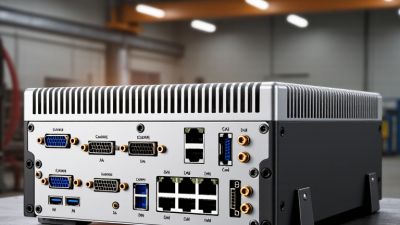
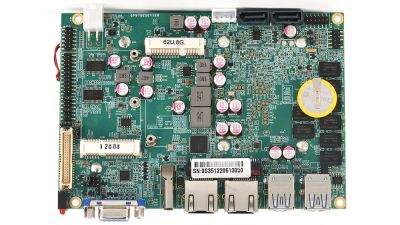
Fanless 3.5-inch Core U boards bring compact, low-power computing to industrial systems that need dependable operation around the clock. Without a cooling fan, the board has fewer moving parts exposed to dust and vibration, making it well suited to enclosed equipment and demanding factory environments. Its 15W x86 U-series processor supports responsive control and data processing while helping manage heat and power consumption. Onboard 4GB, 8GB, or 16GB DDR4 memory provides flexible capacity for different applications.
A broad set of industrial interfaces makes the board adaptable across machines and installations. Dual Gigabit Ethernet supports network communication, while VGA, HDMI, LVDS, and eDP enable connections to a range of displays. Six serial ports, GPIO, USB, SATA, mSATA, and mini PCIe allow integration with sensors, controllers, storage, and expansion devices. The board accepts 12–24V DC input and operates from -20°C to +60°C, with an optional -40°C to +75°C range for harsher conditions. These features support applications such as factory automation, machine vision, industrial gateways, and intelligent terminals where stable performance and flexible I/O are essential.
Conclusion
Choosing an Industrial Touch Pc starts with understanding the job it will perform. Define the workload, then select a processor and memory capacity that can handle it reliably, including the demands of continuous 24/7 operation. Match the display size and resolution to the space and tasks, and set a brightness target in cd/m² that suits the lighting conditions. Choose resistive or PCAP touch technology based on whether operators use gloves, work around moisture, or need multi-touch controls.
Next, check the enclosure’s IP rating under IEC 60529 and confirm it suits expected dust and water exposure. Compare the rated operating-temperature range with recorded site extremes, and review shock, vibration, and EMC test results against IEC 60068 and IEC 61000. Before purchasing, verify that the ports, mounting options, and product-lifecycle support fit the installation and long-term maintenance plan. Together, these checks help ensure the computer is practical, durable, and well matched to its environment.